Workspace
Every page4 minMove around Cardmatic
Learn the shared controls that stay with you while you research, organize, price, and sell cards.
Follow a complete signed-in Pro walkthrough—from the first scan to pricing rules, grading evidence, fulfillment, and a public showcase.
Every page4 minLearn the shared controls that stay with you while you research, organize, price, and sell cards.
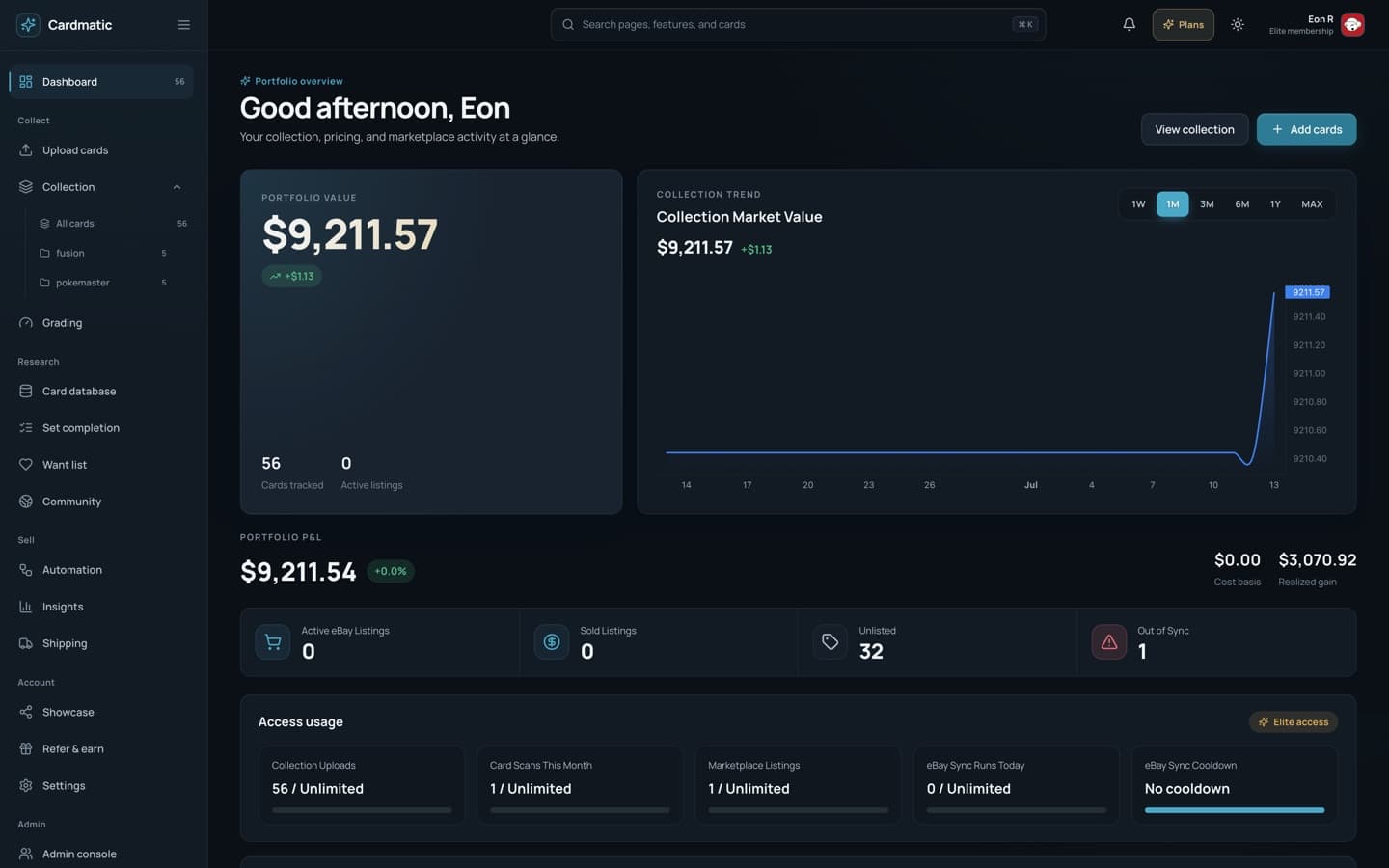
/dashboard5 minTurn the dashboard into a daily briefing for value, profit, inventory, marketplace health, and recent changes.
The lead value combines current estimates and inventory quantities. Its delta shows how the selected chart period changed, while Cards tracked and Active listings provide scale.
Use 1W, 1M, 3M, 6M, 1Y, or MAX above Collection Market Value. The total and gain or loss update with the chosen window.
Portfolio P&L compares market value with recorded purchase costs. Read Unrealized gain for cards you still hold, Realized gain for completed sales, and Cost basis for capital invested.
The listing tiles separate Active, Sold, Unlisted, and Out of Sync inventory. Treat Out of Sync as an action queue, not a performance metric.
Plan meters show remaining collection, scan, listing, and sync capacity. Recent activity records added, edited, listed, and sold cards with timestamps.
/upload10 minBring in card photos or a CSV, repair front/back pairing, verify AI identification, and save clean records.
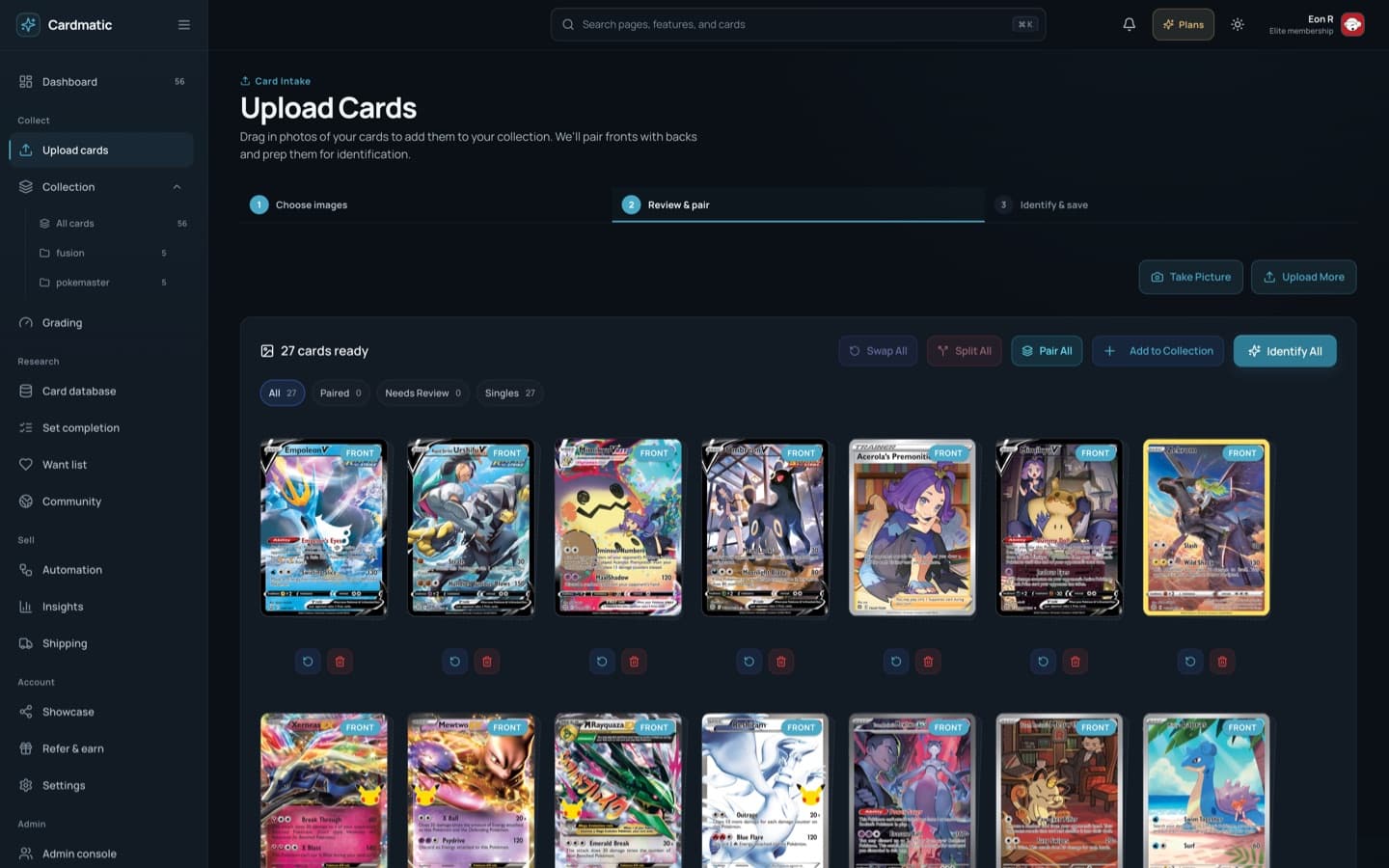
Pick the collection that should receive the cards, then drag JPG, PNG, or WebP files into the intake area, browse from disk, or use live camera capture.
Front only treats every file as a card. With backs pairs sequential files as front/back. Mixed creates singles for you to inspect and pair manually.
Filter All, Paired, Needs Review, or Singles. Inspect each large preview and use Swap sides, Split, Mark as front, Remove, drag-to-pair, Pair all, or Swap all before identification.
The sticky queue tracks Added, Needs Review, Failed, and analyzing cards. Use thumbnails, Previous/Next, or the left and right arrow keys to move quickly.
Compare the scan with the proposed name, set, number, rarity, language, confidence, and catalog image. Keep the catalog match or retain AI details, then decide whether pricing should be included.
Add each identified card, then choose Upload More or Go to Collection. Uploaded card photos make the record photo-backed; they do not verify authenticity. For an existing inventory, Import CSV accepts TCGPlayer, Collectr, Dragon Shield, and standard name/set/number exports.
/collection12 minUse collections, four layouts, powerful filters, inline fields, duplicate cleanup, and bulk marketplace actions.
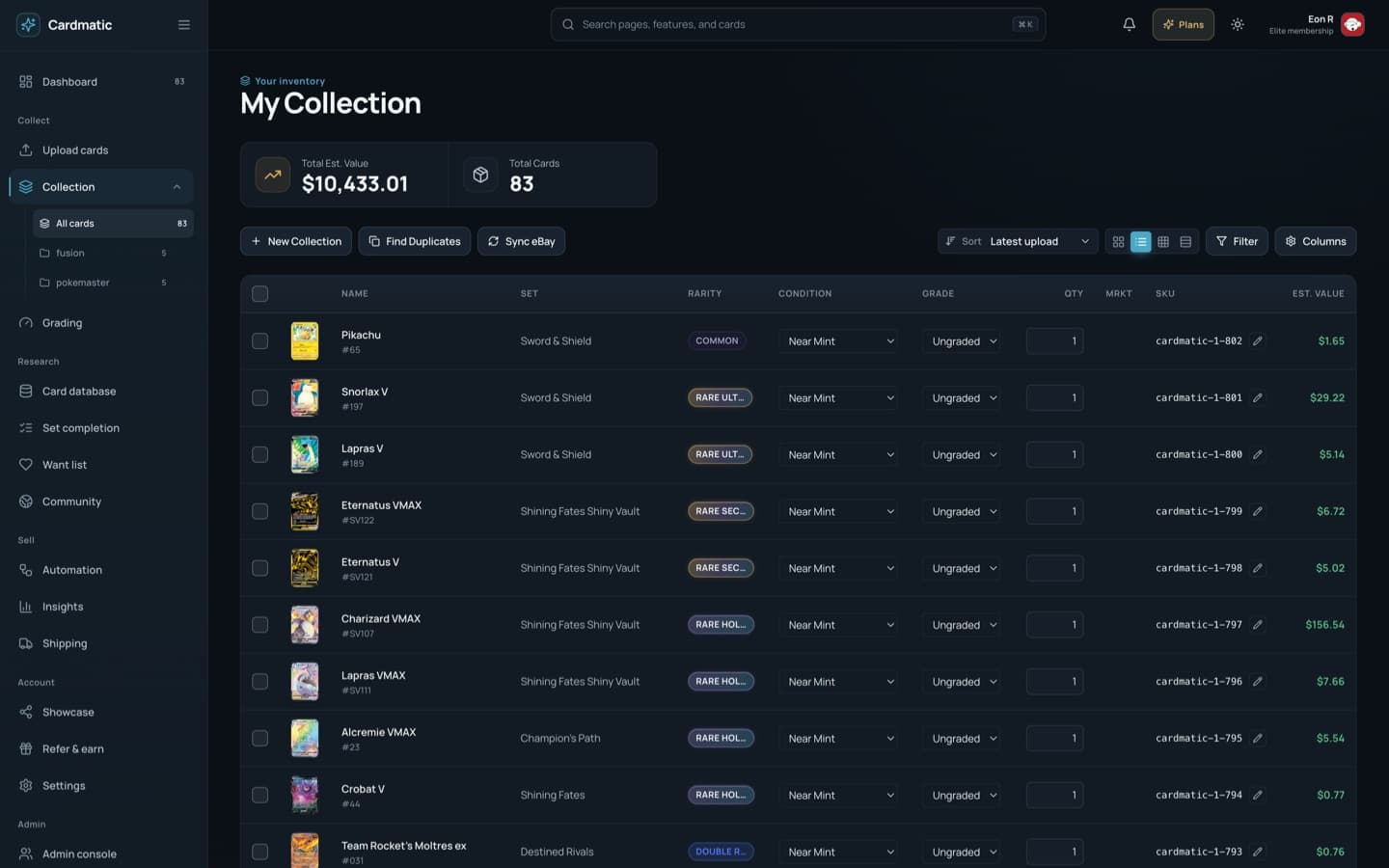
Total estimated value and card count reflect the current view. Create a collection, open it from the sidebar, then rename it, assign a SKU prefix, or delete it from its heading controls.
Search by card text, sort by upload date, name, or value, then switch among Grid, Table, Compact, and Comfortable.
Combine marketplace status, type, rarity, category, and set filters. Reset removes the full filter stack. In Table view, open column controls to show, hide, drag, move, or restore columns.
Table cells support condition, grade, quantity, sale price, and SKU edits. Sale price can sync to the current estimate, and an automatic SKU can be restored after a manual edit.
Use checkboxes, select all, or Shift-range selection. The action bar can set a SKU prefix, assign or remove a collection, create a collection, list, sync, relist, unlist, unsync, or delete.
Find Duplicates groups likely matches so you can choose the keeper, merge quantity, delete only, or process all groups. List opens marketplace or export choices for the selected cards.
/collection · card open12 minUse the expanded record as the complete source of truth for a card, its images, market data, ownership, and listing lifecycle.
Click the main image to flip front and back. Review set logo, number, rarity, type, HP, artist, source freshness, attacks, abilities, rules, and marketplace sync state.
Edit can re-match the card to a catalog result or change name, set, number, rarity, HP, artist, type, condition, grade, purchase price, acquisition date, flavor text, and notes.
Choose printing variant, condition, and grade before trusting the estimate. Compare Market, Low, Mid, and High, then switch price-history ranges between 1M, 6M, and 1Y.
Add a price alert, record cost basis, read unrealized gain, and inspect the worth-grading estimate before spending on a submission.
The Gallery tab separates primary, back, and additional images. Drag files in or use Add Image, then remove extras that should not appear with the record or listing.
The Sell tab checks readiness, then lets you set title, description, price, inventory, condition, SKU, selected images, graded details, marketplace, and listing format.
/database6 minBrowse sets first or search across the catalog, compare estimates, and move cards into your acquisition workflow.
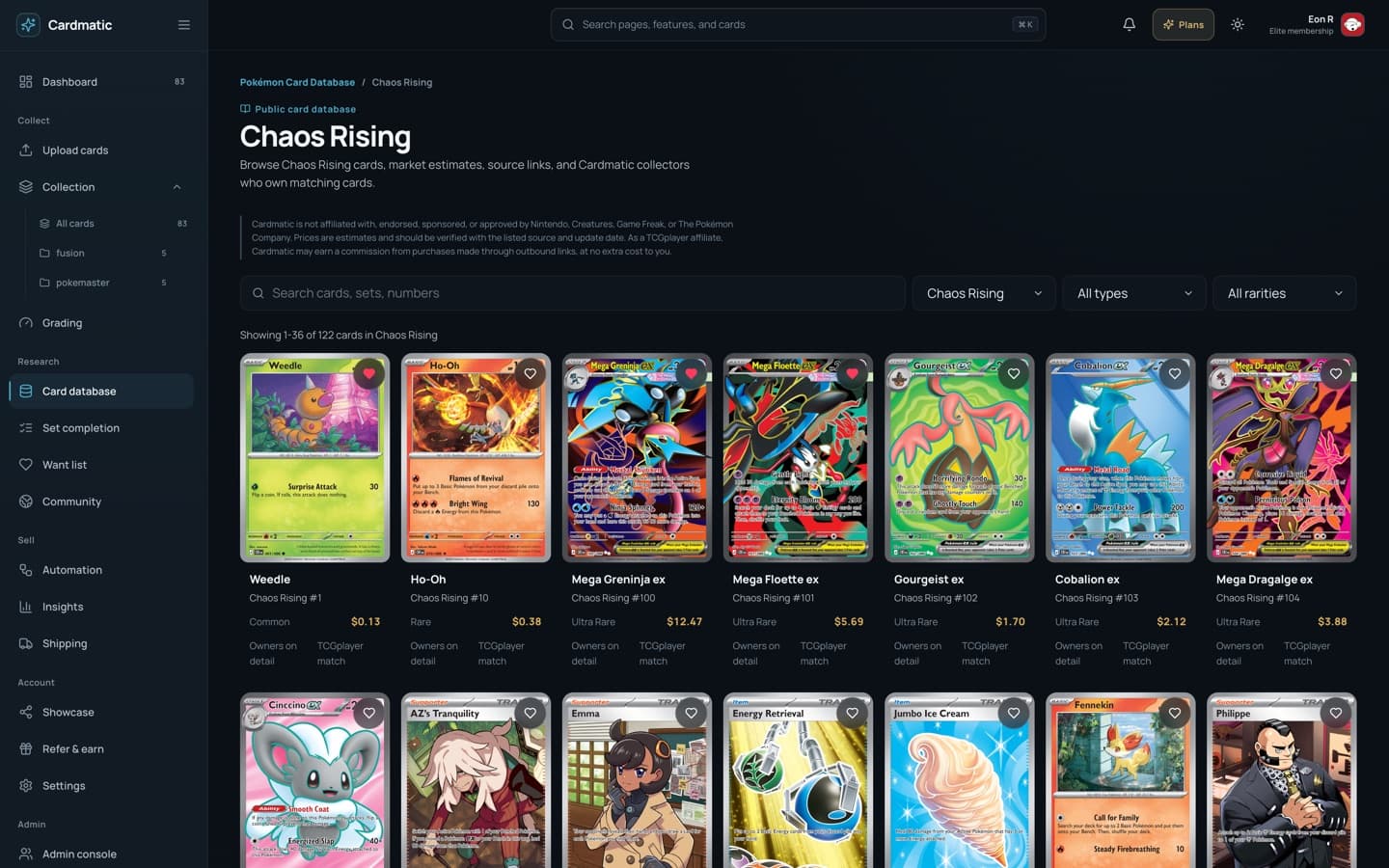
The default database view shows set logo, symbol, release date, and card count. Select a set to open its card grid; use the breadcrumb to return.
Search names, sets, or numbers, then narrow by Set, Type, and Rarity. Clearing the filters returns to the set-first browser.
Each result shows artwork, identity, rarity, market estimate, and pricing-source state. Owned badges distinguish cards already in your inventory.
Use the heart to add or remove a card from Want List. Select the rest of the result to open its dedicated catalog record. More results load automatically as you scroll.
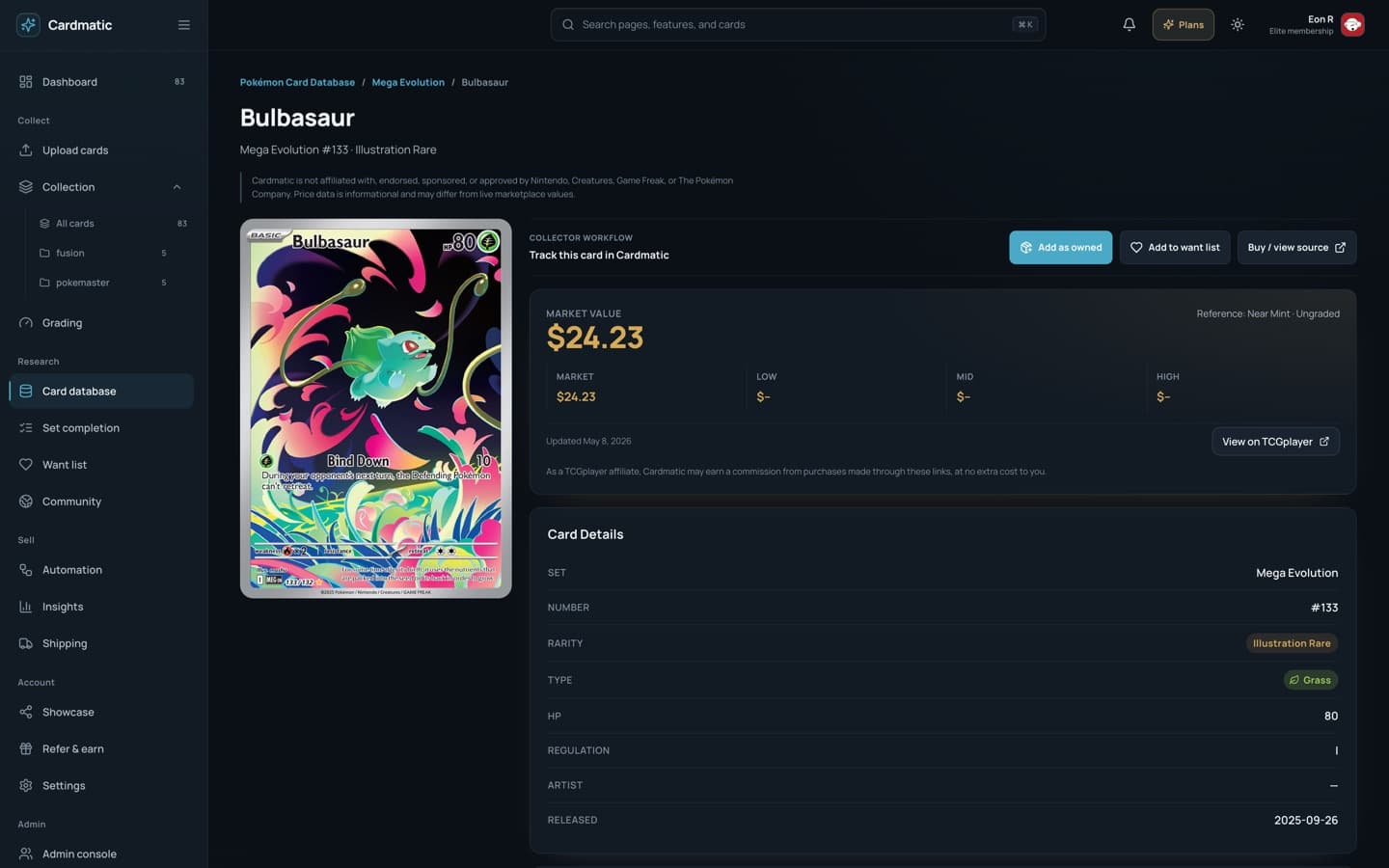
/database/[card]5 minConfirm the exact card, compare printing variants and price bands, and read the full catalog record before buying or matching.
Switch among available printings, then compare Market, Low, Mid, and High values. Check the update date before following TCGplayer or Cardmarket links.
Confirm set code, collector number and printed total, rarity, type, HP, level, regulation mark, artist, release date, ancient trait, rules, description, and flavor text.
The owner area reports how many public copies other collectors have recorded. Use it as collection context; price decisions should still come from the cited market sources.
/sets3 minSee which sets you have started, measure unique-card completion, and jump into the catalog to fill gaps.
Only sets represented in your collection appear, which keeps the page centered on goals you have actually started.
Each set shows owned unique cards, catalog total, percentage, and a progress bar. Duplicate quantity does not inflate completion.
Open a set to move into the filtered Card Database. Owned badges make collected printings visible while you research the gaps.
/want-lists5 minAdd catalog cards, define the price that makes them interesting, and manage deal notifications.
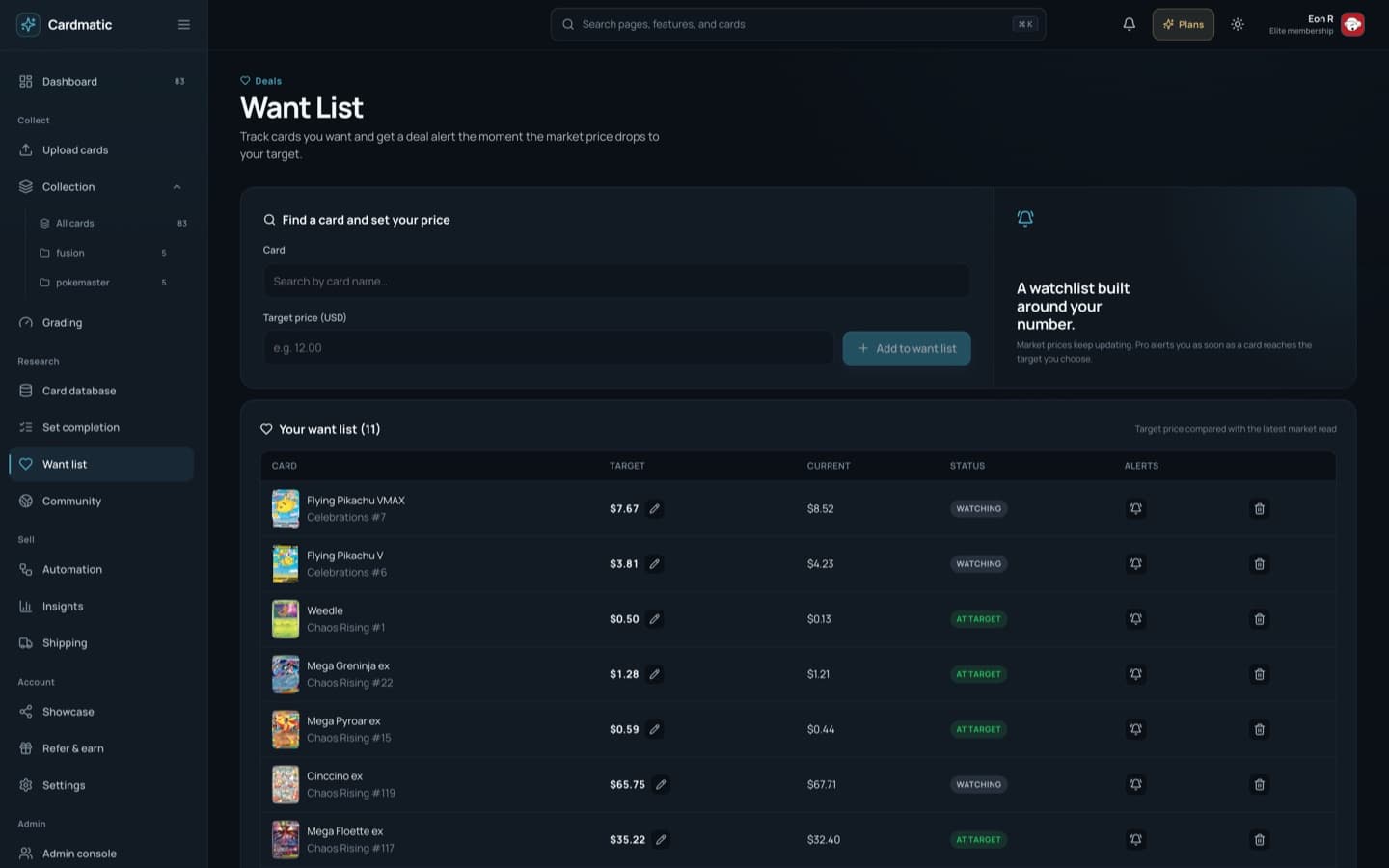
Start typing a catalog name, choose the exact set and number from autocomplete, set a target price, then add it to the list.
Each row shows identity, live estimate, and your target. Watching means the market is still above target; At Target means the deal condition has been met.
Edit a row, change the target, then Save or Cancel. Use the card link to revisit its catalog evidence before changing the threshold.
Toggle email alerts per card. Remove clears the watch entirely. Prices refresh automatically as Cardmatic receives updated catalog values.
/grading8 minInspect condition evidence, compare costs with clearly labeled value scenarios, and follow physical submissions through completion.
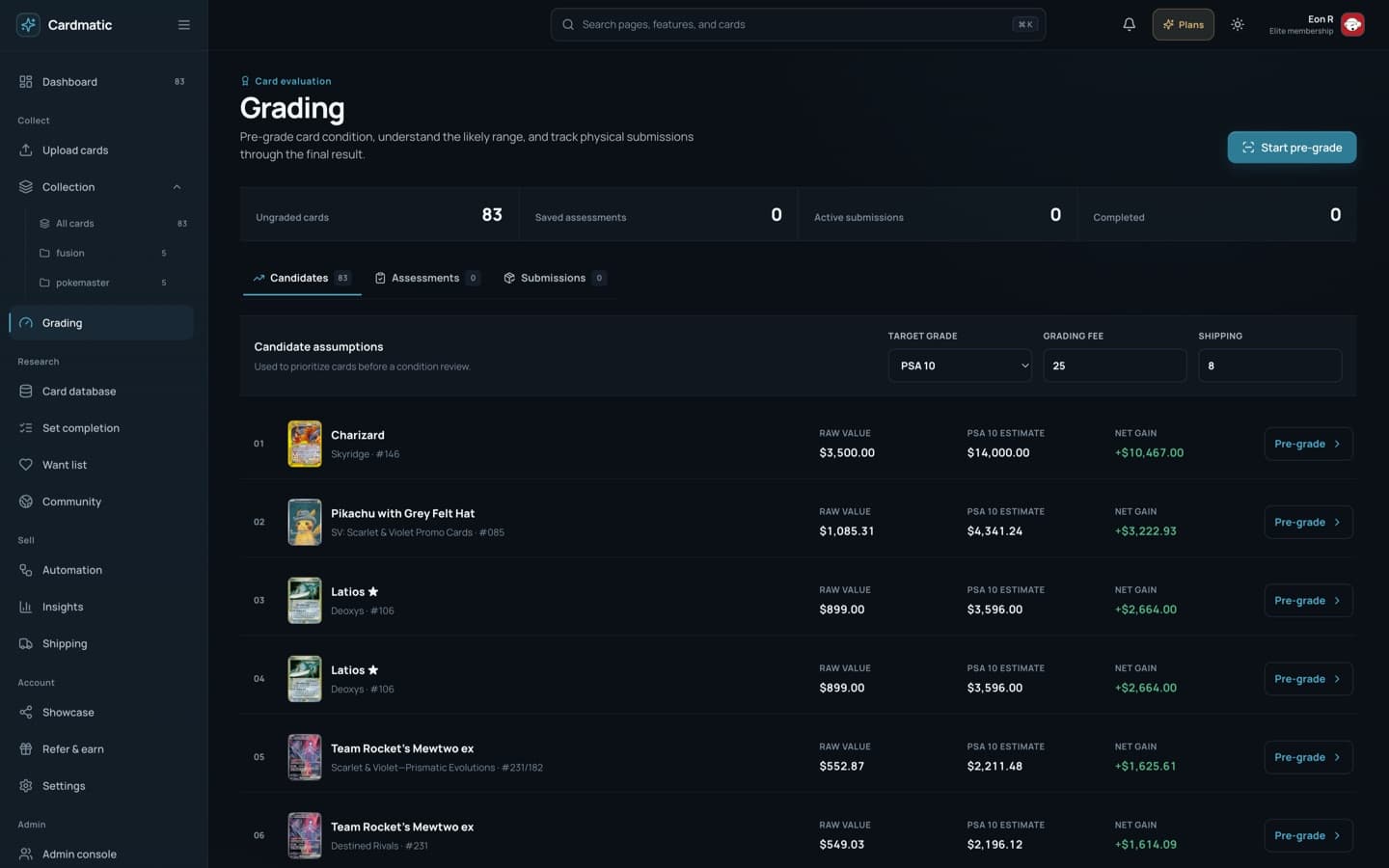
Candidates is for deciding, Assessments stores evidence, and Submissions tracks cards sent to a grading company. Overview counts show the current pipeline.
Set a target grade, grading fee, and shipping assumptions. The ranked list compares raw value with a value scenario before you start a condition report.
Each assessment records grade range, confidence, capture count, centering, corners, edges, surface, raw value, and estimated graded range.
Add a card manually or from an assessment, then record company, service level, declared value, fee, tracking, and notes.
/grading/pre-grade?card=…9 minCapture the card carefully, learn what graders inspect, review visible findings, and decide whether professional grading may be worthwhile.
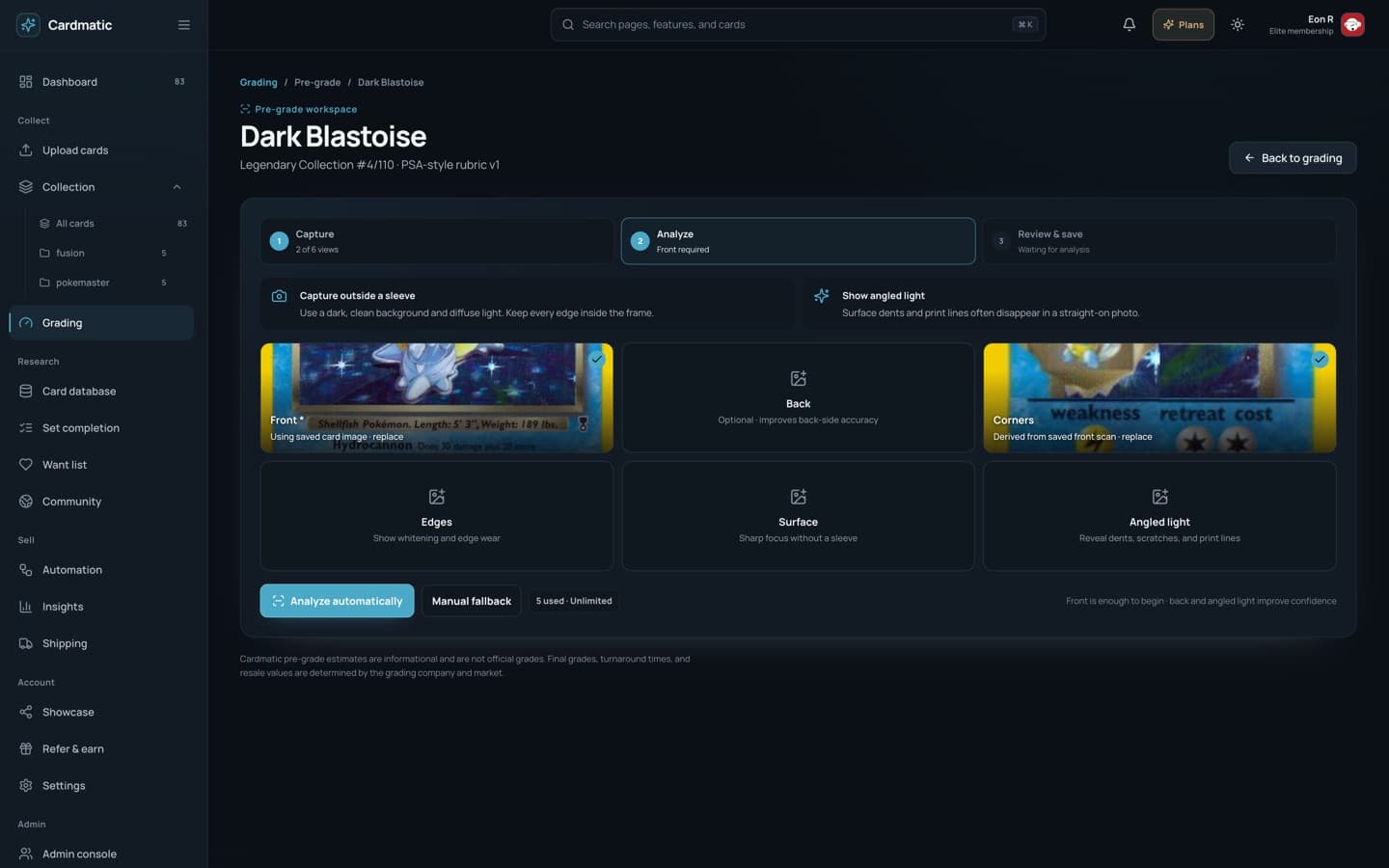
Use the saved card images when available, then add or replace Front, Back, Corners, Edges, Surface, and Angled light. Front is required.
Analyze photos creates a photo-assisted report. Manual fallback lets you enter scores from 1 to 10 for centering, corners, edges, and surface without claiming photo-based detection.
Switch capture tabs, read the color legend, select defect markers, and inspect the surface magnifier. Centering overlays report border thickness, horizontal and vertical ratios, and confidence.
Focus a finding from the commentary list. Mark Not damage to exclude it from the estimate, and use the dismissed section to restore it if needed.
Review the grade range, confidence, score bars, and active findings, then Save assessment. The result returns to the Assessments tab for later submission planning.
/automation8 minCreate market-aware rules, preview changes before applying them, monitor targets, and control digest cadence.
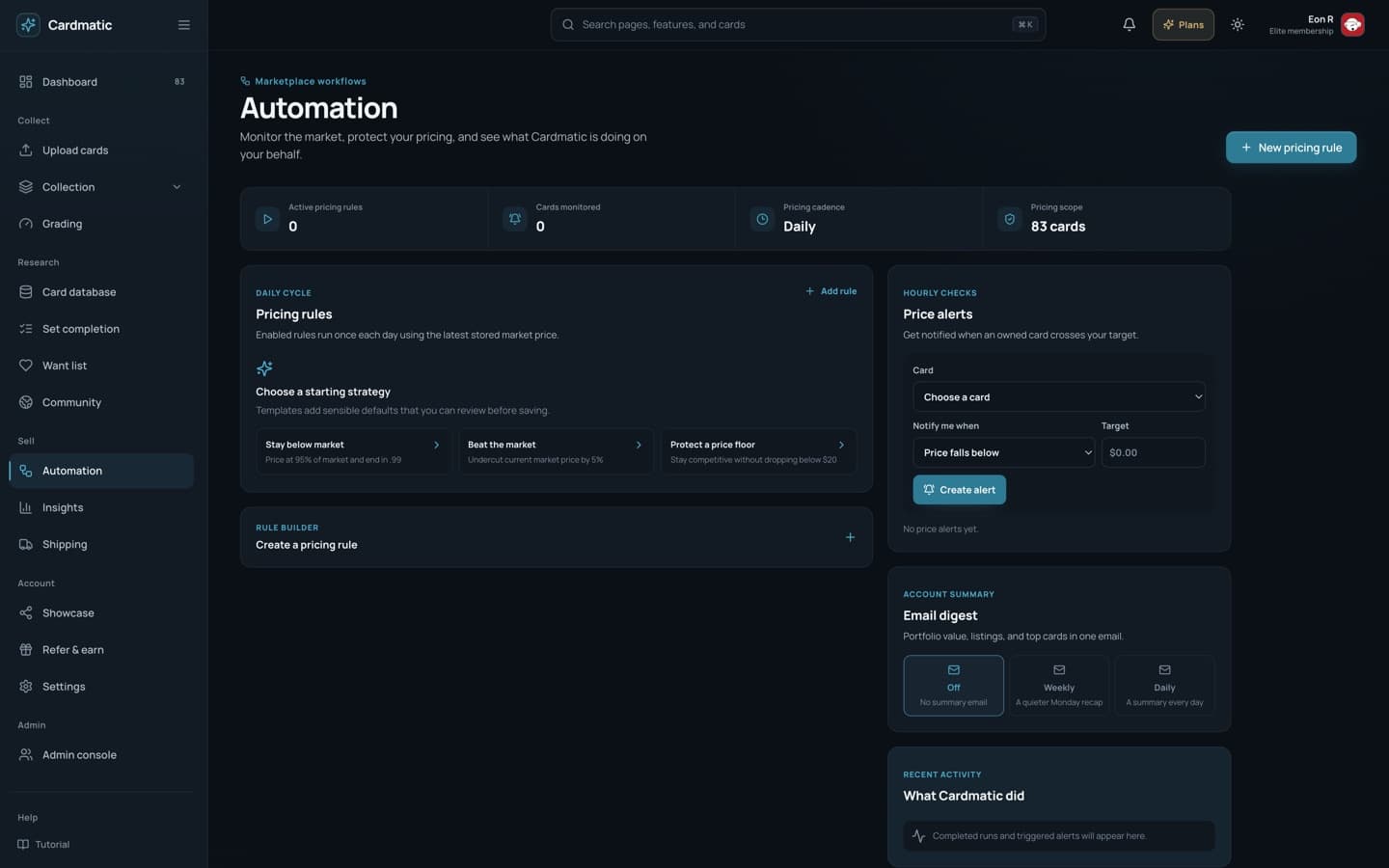
The status strip summarizes active rules, monitored cards, daily cadence, and scope so you know what can change without opening each rule.
Start from Stay below market, Beat the market, or Protect a price floor—or build from scratch with name, strategy, percentage or fixed value, price ending, minimum, maximum, and target scope.
Preview changes compares Market, Current, and Proposed values and states whether each update affects Cardmatic only or both the card and linked listing. Confirm only after reviewing the queue.
Pause stops future automatic changes without deleting the instruction. Enable resumes it. Delete requires a second confirmation and removes its preview.
Choose an owned card, rises above or falls below, and a target to create a price alert. Delete stale alerts, choose Off, Weekly, or Daily email digest, and review recent automated runs below.
/insights6 minBenchmark the portfolio, surface listing drift, and export a clean sales file for accounting.
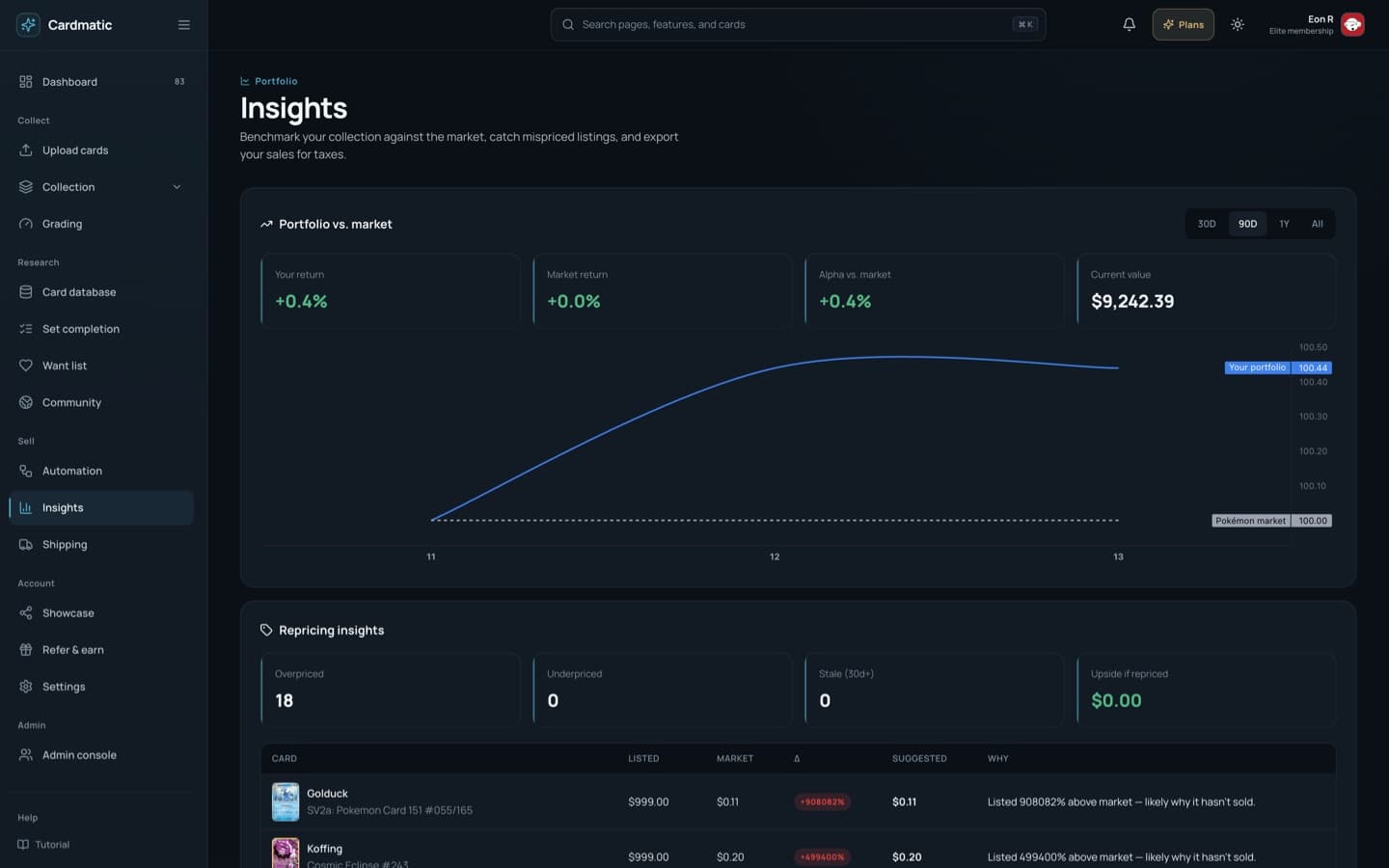
Switch 30D, 90D, 1Y, or All to compare Portfolio return with Market return. Alpha is the difference between those returns; Current value anchors the percentage in dollars.
Summary counts separate Overpriced, Underpriced, and Stale listings and estimate potential upside. The table explains listed price, market reference, delta, suggestion, and reason.
Choose the current or either of the prior two tax years, review proceeds, cost basis, profit, and units, then download the sales CSV.
/shipping5 minPull the right inventory, print a pick list, update packing state, and save tracking as orders leave.
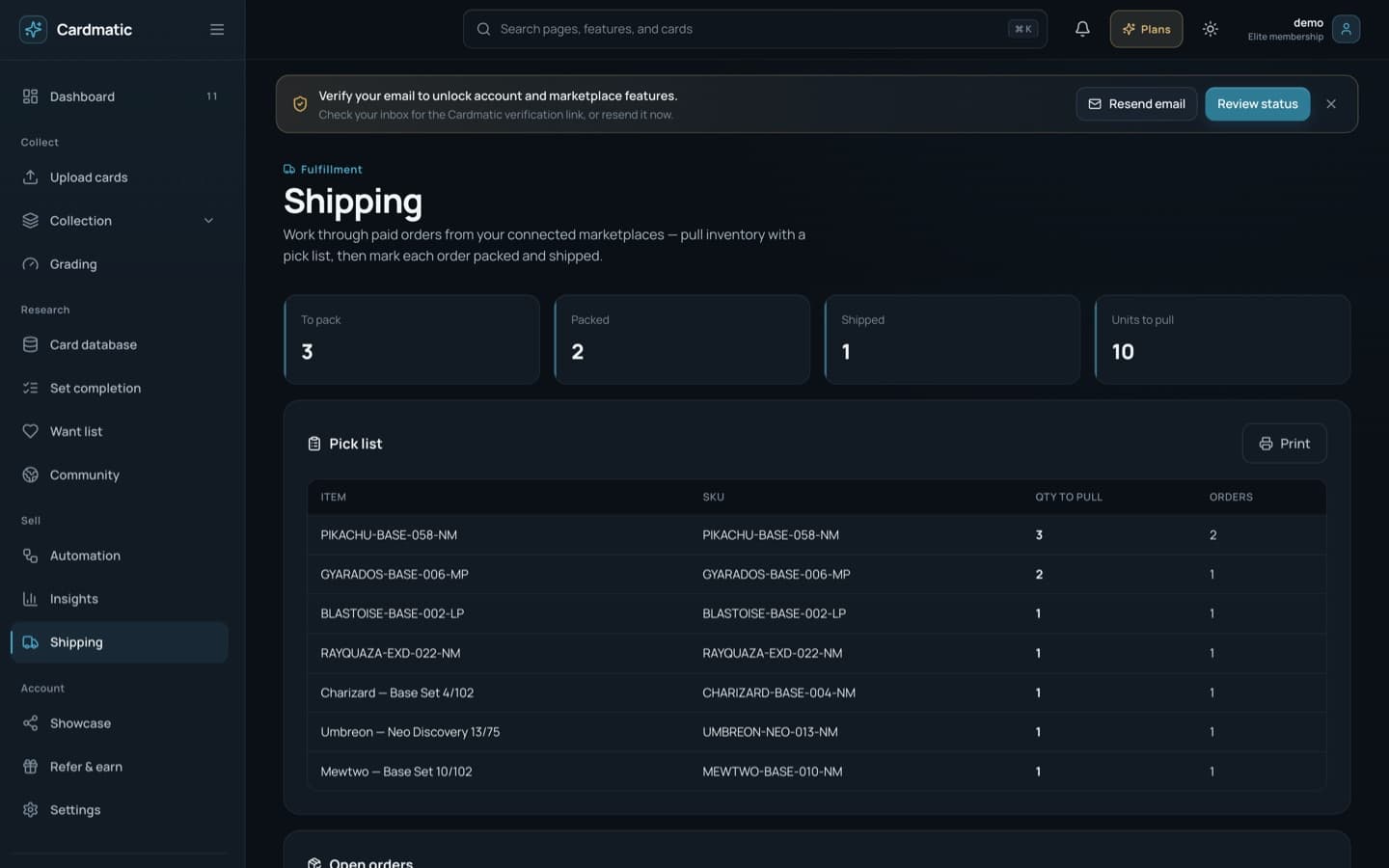
To Pack, Packed, Shipped, and Units to Pull show immediate workload. New paid orders enter after marketplace order sync.
The pick list consolidates item, SKU, quantity, and order count. Use Print to take a clean list to storage or the packing table.
Open orders show marketplace, order, buyer, items, and total. Move status from To Pack to Packed to Shipped as the physical work is completed.
Enter the carrier tracking number and save it on the order. Verify the value before marking Shipped so downstream status stays trustworthy.
/showcase5 minChoose the public identity of your binder, control whether it is live, and share a stable link.
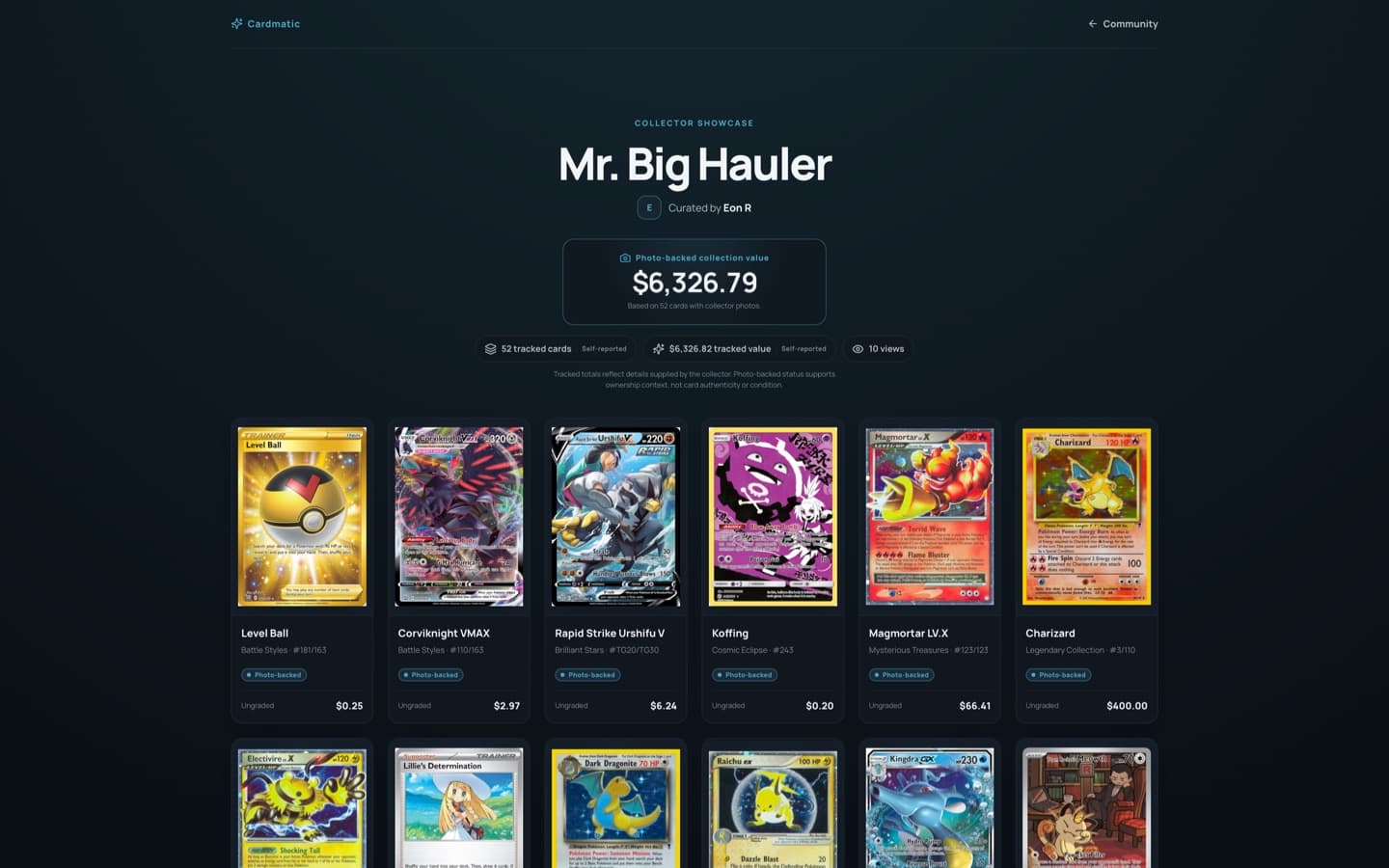
Only cards marked public are eligible for the showcase. Curate that visibility before publishing so private inventory never appears unexpectedly.
Choose a unique URL slug, a clear title, and a short bio. The slug becomes the permanent share path, so keep it recognizable and easy to type.
Use the live/hidden control, then Save showcase. Hidden keeps the configuration but makes the public link unavailable.
/u/[your-slug]3 minAudit the public binder as a visitor before sharing it with buyers, friends, or other collectors.
The public header shows title, curator, bio, public card count, estimated value, and views. Confirm that the copy and total tell the story you intend.
Each tile shows artwork, name, set, number, condition or grade, and current estimate. Return to Collection if anything should be removed or corrected.
A hidden or unavailable slug shows Showcase not found instead of leaking the former binder. The footer gives visitors a path back to Cardmatic.
/referrals4 minCopy your personal invitation, understand reward timing, follow conversion, and redeem a code correctly.
Copy link includes your referral code in a registration URL. Share that exact URL so attribution is applied automatically.
The invited person receives the displayed Pro benefit. Your reward is applied when that person becomes a paying subscriber, not when they only open the link.
Referred, Converted, Pending, and Pro-until distinguish invitations from completed rewards and active benefit time.
Enter the supplied code; Cardmatic normalizes it to uppercase. Review the one-time eligibility message before selecting Redeem.
/upgrade4 minCompare billing cadence, limits, and features without losing sight of the plan already active on the account.
Switch the billing-cycle control to see monthly equivalents and the displayed annual saving. The Pro card is marked as the current plan for this walkthrough.
Each card summarizes price and headline capabilities. Current Plan is non-destructive; higher tiers offer an upgrade action, while lower tiers route through subscription management.
Use the full matrix for collection size, scans, condition assessments, CSV import/export, listings, connections, sync cadence, automation, analytics, and support.
Manage Subscription opens the billing portal for payment method, invoices, renewal, downgrade, or cancellation. Return to Cardmatic after the portal confirms the change.
/feedback3 minRoute a clear report to the right area and know when Cardmatic has accepted it.
Add the page, action, expected result, and actual result…
Select General, Bug, Feature, Database, Rights, Marketplace, or Pricing so the report reaches the most relevant review queue.
Confirm name and email, then include the page, action, expected result, actual result, and any card or marketplace context that is safe to share.
Send feedback disables while saving. A success state confirms the note was stored; an inline error keeps the form available for correction and retry.
/faq3 minScan focused categories, expand only the question you need, and use support email when the guide is not enough.
Questions are grouped into Getting Started, Upload & Collection, Research & Targets, Grading, Selling & Operations, Showcase & Community, Account & Billing, and Privacy & Support.
Select a question to reveal its answer; select it again to collapse. Keyboard focus and expanded state make the control usable without a pointer.
Use the support email link for account-specific issues that cannot be resolved by a product explanation. Include the smallest safe amount of context.
/privacy-policy4 minReview what Cardmatic stores, how long it is retained, which services receive data, and the browser-level analytics choice.
Anonymous browser and session IDs only. No card images, searches, email, or raw IP addresses.
The policy distinguishes browser-only guest records from account data, then covers uploaded images and AI processing, marketplace and order data, public showcases, service providers, affiliate measurement, retention, security, rights, and contact routes.
Cardmatic product analytics shows On or Off for the current browser. Turn off removes its random first-party analytics identity and leaves only the opt-out preference; Allow analytics reverses that choice. The policy separately explains affiliate measurement that this control does not disable.
Supported Global Privacy Control and Do Not Track signals also suppress anonymous product analytics. The policy states the event retention window and fields that are excluded.
Follow the described rights or rights-holder removal route when requesting access, correction, deletion, or content review, and provide enough information to verify the request.